

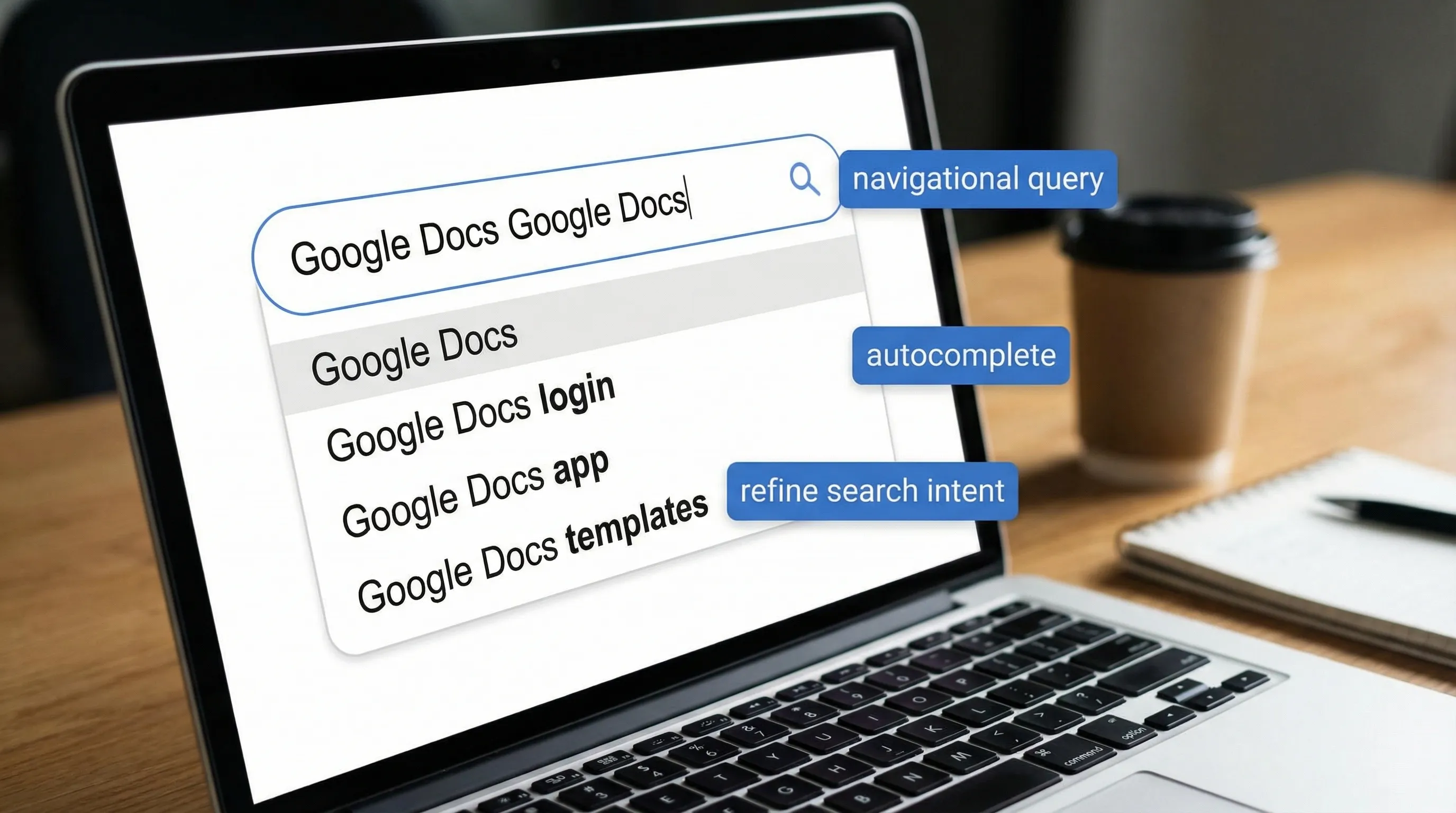
If you’ve ever typed “Google Docs Google Docs” (or seen it in your browser suggestions, analytics, or search results) and wondered why it looks duplicated, you’re not alone. That repeated phrasing usually is not a secret feature or a bug in Google Docs itself. It’s almost always a search behavior artifact: autocomplete, copy-paste, query refinement, or people trying to force Google to understand the exact product they mean.
This guide explains why “Google Docs Google Docs” repeats, what it usually signals about intent, and what to search instead so you land on the right page (help articles, templates, add-ons, or AI tools) faster.
What does “Google Docs Google Docs” usually mean?
In most cases, it’s a navigational query with extra emphasis.
People commonly repeat a brand or product name when they:
- Want the official product page and not an unrelated “docs” result (API docs, documentation sites, developer docs)
- Start typing, accept autocomplete, then type again out of habit
- Copy “Google Docs” from one place and paste it into a search box that already contained it
- Use voice dictation that repeats phrases
In other words, “Google Docs Google Docs” is less about the app, and more about search engines interpreting (or misinterpreting) intent.
Why it repeats: the most common causes
1) Autocomplete and “accept suggestion” habits
Google Search and browser address bars often suggest “Google Docs” as you type. A common pattern is:
- You type “Google Do…”
- The suggestion “Google Docs” is accepted (Tab/Enter/click)
- You continue typing and accidentally add “Google Docs” again
This can be especially common on mobile where suggestions are tapped quickly.
2) Query refinement (users add the same term again)
Sometimes repetition is intentional. Users may be trying to filter results:
- Searching “docs” shows developer documentation, Word docs, or generic document advice
- Adding “Google Docs” clarifies the product
- Repeating “Google Docs” is an overcorrection to keep results on-topic
3) “Docs” ambiguity (the word “docs” is overloaded)
“Docs” can mean:
- Google Docs (the editor)
- Documentation (developer docs, help docs)
- Documents in general
So users often over-specify to avoid results like “Google Docs API docs” or “Google documentation.”
4) It can show up in analytics because search terms get duplicated
If you’re looking at internal site search logs, ad search terms, or SEO tools, duplicates can appear because:
- Tracking parameters get concatenated
- A query is logged twice (once on load, once on refine)
- Keyword tools cluster variants poorly
This is common in reporting systems, not something you caused in Google Docs.
5) Dictation and accessibility tools can repeat phrases
Voice typing and dictation sometimes repeats words when:
- There’s background noise
- The mic input briefly drops
- The user pauses and restarts mid-phrase
If you see repetition while entering a search query via voice, try typing the query manually once.
Is it ever a Google Docs bug?
Rarely, and usually not in the way people expect.
If you’re seeing repeated words inside a Google Doc while typing, that is typically caused by one of these:
- A browser extension injecting text (grammar tools, AI assistants, clipboard managers)
- Input method editor issues (IME) for multilingual typing
- Temporary browser lag causing keystrokes to register twice
Quick troubleshooting steps:
- Try an Incognito/Private window (extensions disabled by default)
- Disable extensions one-by-one (start with writing/AI/grammar extensions)
- Test in another browser
If repetition happens only in search queries and not in the document editor, it’s almost certainly search/autocomplete behavior, not Docs.
What to search instead (intent-based queries that work)
“Google Docs Google Docs” is vague. Better searches depend on what you’re actually trying to do. Use the table below to jump straight to the right intent.
| If your goal is… | Search this instead | Why it’s better |
|---|---|---|
| Open the app quickly | “Google Docs login” or “docs.google.com” | Navigational, fewer distractions |
| Get official help | “Google Docs help insert table of contents” | Matches Google Help Center wording |
| Find templates | “Google Docs project proposal template” | Template intent, not product intent |
| Learn a feature | “how to track changes in Google Docs” | Feature + task phrasing |
| Troubleshoot a problem | “Google Docs won’t load in Chrome” | Includes symptom + environment |
| Add AI writing support | “AI assistant for Google Docs” or “ChatGPT in Google Docs” | Targets add-ons and integrations |
| Use Gemini in Docs | “Gemini for Google Workspace in Docs” | Uses Google’s current product naming |
High-signal searches for AI in Google Docs
If your real intent is “I want an AI copilot inside Docs,” these queries tend to produce better results than repeating the product name:
- “ChatGPT in Google Docs add-on”
- “AI writer for Google Docs privacy”
- “summarize document with AI in Google Docs”
- “Google Workspace Marketplace AI for Docs”
If you’re evaluating Google’s native option, Google publishes official information about Gemini in Workspace (availability and capabilities can vary by plan and admin settings). Start here: Gemini for Google Workspace overview.
Search operators that make Google Docs searches dramatically easier
When Google results feel noisy, use operators to force relevance. Google documents many of these in its Search help resources, including operator behavior. See: Google Search operators.
Practical examples for Google Docs tasks:
- Find official Google guidance:
site:support.google.com "Google Docs" page numbers
- Find Marketplace listings and add-ons:
site:workspace.google.com marketplace "Google Docs" ai
- Find file-based tutorials (PDF checklists, etc.):
filetype:pdf "Google Docs" formatting checklist
- Force an exact phrase:
"Google Docs" "version history"
These are especially useful when “Docs” keeps pulling in developer documentation.
Why you might see the doubled phrase in autocomplete suggestions
Autocomplete reflects aggregated search behavior and personalization signals. If enough people search variations like:
- “Google Docs”
- “Google Docs app”
- “Google Docs templates”
Then the suggestion system can end up presenting a “loop” where selecting one suggestion does not end the typing process. Add a second “Google Docs” and now it looks duplicated.
This is also why SEOs sometimes see strange keyword variants. The presence of a query variant does not always mean users truly intend to repeat it, it can be a mechanical artifact of the UI.
If you’re searching “Google Docs Google Docs” because you want AI inside Docs
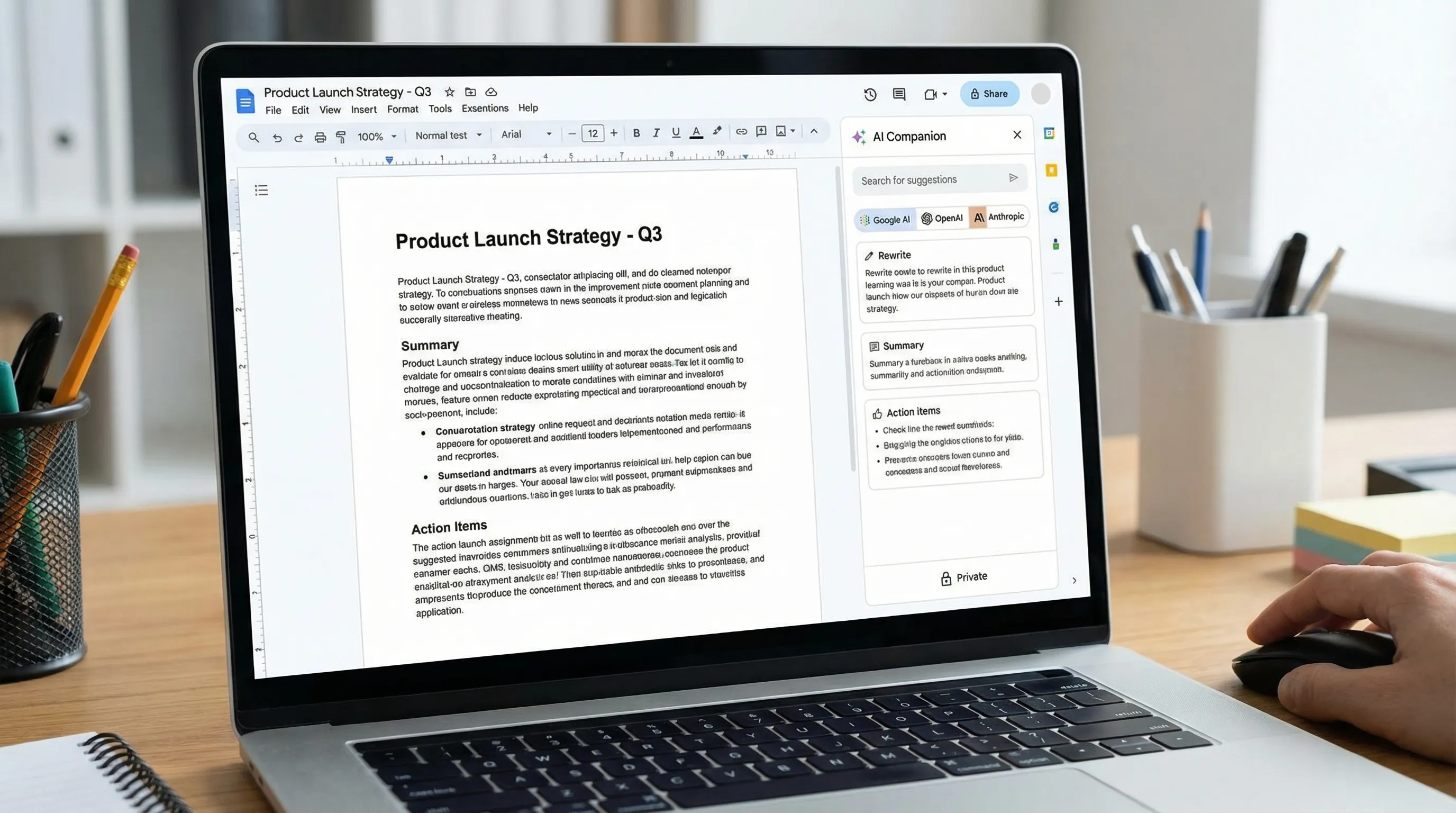
A growing share of “Google Docs” searches are no longer about formatting. They’re about writing faster, summarizing, extracting action items, and turning notes into structured content.
There are two common paths:
Option A: Use Google’s native AI (where available)
Gemini for Google Workspace can help with drafting, summarizing, and transforming content across Workspace apps, depending on plan and configuration. The official entry point is the Workspace AI resources page: Gemini for Google Workspace.
Option B: Bring your preferred models into Docs
Many teams want flexibility, for example using ChatGPT for one workflow, Claude for another, or comparing outputs. If your goal is “use the model I prefer inside the editor,” you’ll typically look for an integration that runs where you work.
CoreGPT Apps is designed for this type of workflow: it brings GPT-powered assistance into Google Docs (and other Microsoft 365 and Google Workspace apps) so you can write and revise without bouncing between tabs. You can learn more at CoreGPT.
Because CoreGPT also supports Microsoft 365, some teams standardize one approach across environments. If that’s your situation, these guides can help you understand the general “AI inside the document” workflow:
(Those articles focus on Word and Excel, but the core idea is the same: keep the AI where your documents and data already live.)
A quick “what to search” checklist (so you stop repeating the same term)
When you catch yourself typing “Google Docs Google Docs,” pause and add one of these modifiers instead:
- A task: “format,” “summarize,” “outline,” “citation,” “meeting notes,” “table,” “mail merge”
- A constraint: “privacy,” “no add-on,” “offline,” “Chrome,” “mobile”
- A workflow outcome: “turn notes into proposal,” “rewrite in simpler language,” “extract action items”
This consistently produces higher-quality results than repeating the product name.
Frequently Asked Questions
Why does “Google Docs Google Docs” show up in search suggestions? Autocomplete and user behavior can produce duplicate-looking queries, especially when suggestions are accepted and then the user keeps typing.
Is “Google Docs Google Docs” a Google Docs glitch? Usually no. It’s typically a search query artifact. If words repeat inside a document while typing, extensions or input issues are more likely causes.
What should I search instead of repeating Google Docs? Add intent terms like “template,” “help,” “insert table of contents,” “AI assistant,” or “ChatGPT in Google Docs” so Google can match the task you want.
How do I find official Google Docs help faster? Use site:support.google.com plus your feature or error message, for example site:support.google.com Google Docs page numbers.
Can I use AI like ChatGPT inside Google Docs? Yes, via integrations and add-ons that bring AI into the editor. If you want to use multiple models across Google Workspace and Microsoft 365, see CoreGPT.
Try an AI copilot directly inside Google Docs
If your real goal behind searching “Google Docs Google Docs” is to write faster, summarize longer documents, or turn rough notes into polished output, you’ll get further by using an AI copilot that works inside the document.
CoreGPT Apps brings GPT-powered tools into Google Docs and other productivity apps, with a privacy-focused design and no registration required. Explore CoreGPT here: coregptapps.com.