

Hybrid teams in 2026 are faster than ever, but spreadsheets still break in the same predictable ways: someone overwrites a key formula, people work from different versions, permissions get messy, and decisions get made from stale numbers. Whether you standardize on Microsoft Excel or Google Sheets, the best “collaboration tool” is usually a set of habits and guardrails that make it hard to do the wrong thing.
This guide focuses on practical, battle-tested collaboration tips for 2026, plus cross-app workflows that connect spreadsheets to the places work actually happens: Outlook, Word, Excel, and PowerPoint first, then Google Docs and Google Sheets, followed by Google Slides and Google Forms.
Excel vs Google Sheets in 2026: the collaboration differences that matter
At a high level, Excel and Sheets can both support real-time collaboration. The difference is usually less about “can we co-edit?” and more about governance: how your team controls access, preserves structure, and turns a spreadsheet into a reliable system.
Here are the collaboration dimensions that typically decide the winner.
| Collaboration need | Excel (Microsoft 365) tends to excel when… | Google Sheets tends to excel when… |
|---|---|---|
| Source of truth | Your org already runs on OneDrive/SharePoint, desktop Excel, and Microsoft permissions | Your org is link-first, browser-first, and lives in Drive |
| Change control | You need clearer structure, defined tables, and formal review cycles for finance or ops | You need fast iteration with lots of lightweight contributors |
| Stakeholder workflow | Work starts in Outlook emails, becomes an Excel tracker, and ends as a PowerPoint update | Work starts in Google Forms, lands in Sheets, and becomes a Slides recap |
| Data complexity | Models, large datasets, advanced features, and standardized templates | Flexible collaboration, quick sharing, and rapid data collection |
| External sharing | You can share externally, but controls are often more policy-driven | External sharing is simple, but can get risky without governance |
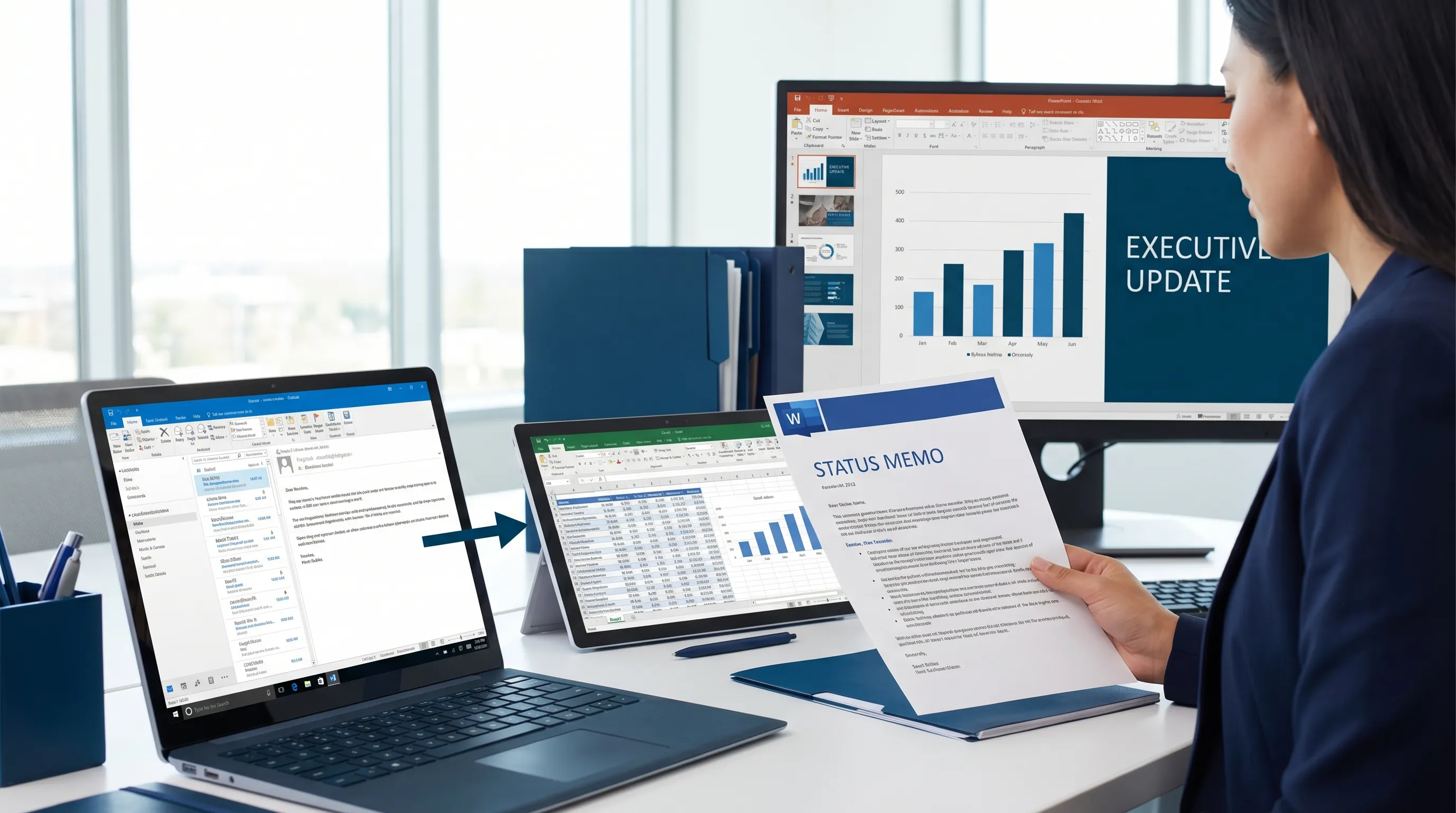
If you are already standardized on Microsoft 365 for communication and documents, Excel often wins because it fits naturally into the Outlook → Word → Excel → PowerPoint workflow. If your team is standardized on Google Workspace, Sheets often wins because it is effortless to share, comment, and co-edit from anywhere.
Collaboration tips for Excel (Microsoft 365) teams
Excel collaboration usually breaks when a workbook becomes “everybody’s scratchpad.” The fix is to treat shared workbooks like products: clear structure, clear ownership, and clear permissions.
1) Make coauthoring the default, not a special case
If you want Excel to behave like a shared workspace, keep the file in OneDrive or SharePoint and ensure people are opening the shared version (not emailing attachments back and forth). Microsoft documents the basics of coauthoring and shared editing in its support content, which is a good baseline to align on internally.
Practical habit: put a single “source of truth” link in the relevant Outlook thread or Teams channel, and tell the team, “No attachments.”
2) Design the workbook for collaboration: separate input, logic, and output
A simple structure prevents accidental breakage:
- Inputs tab: people type or paste data here
- Logic tab: formulas, transformations, pivots
- Output tab: charts, KPIs, executive-ready summary
This makes it much easier to protect what must not be edited (logic) while keeping collaboration friction low (inputs).
3) Use comments and @mentions for decisions, not cell edits
The fastest way to create confusion is silent edits. The fastest way to build trust is visible intent.
Use comments to capture:
- Why a number changed
- What assumption changed
- What decision was made, and by whom
Then summarize the decision back into the Outlook thread so stakeholders outside the spreadsheet still get the context.
4) Protect the workbook like you mean it
Even small guardrails prevent big outages:
- Protect formula ranges on “Logic” tabs
- Use data validation on input columns
- Standardize date formats and currency formats
- Use clear column headers and keep schemas stable
You do not need heavy process to be safe. You need the minimum structure that stops accidental damage.
5) Turn Excel work into Word and PowerPoint outputs, on a schedule
Excel collaboration gets smoother when people know when outputs are “official.” A common pattern:
- Word becomes the narrative (weekly memo, decision log, project status)
- PowerPoint becomes the stakeholder update (KPIs, risks, next steps)
If your team agrees that “Friday 2pm is the freeze and publish,” you reduce churn and prevent constant mid-week rework.
Collaboration tips for Google Sheets teams
Google Sheets collaboration is famously fast, which is both the upside and the risk. Your goal is to preserve the speed while adding lightweight controls.
1) Use protected ranges and clear edit zones
If everyone can edit everything, someone eventually will.
Create obvious “edit here” areas, then protect:
- Header rows
- Key formula columns
- Any reference tables used across tabs
This keeps Sheets flexible without letting the spreadsheet degrade over time.
2) Standardize collaboration with filter views (not shared filters)
When multiple people are analyzing at once, one person’s filter should not become everyone’s filter. Use per-user views so each collaborator can slice the data without disrupting others.
3) Make intake structured with Google Forms
If your workflow starts with collecting inputs (requests, updates, incidents, weekly numbers), Google Forms → Google Sheets is still one of the cleanest collaboration pipelines.
A practical rule: if more than three people are “typing into the sheet,” consider moving the typing into a form.
4) Treat version history as part of the workflow
Your team should know how to answer these questions quickly:
- What changed?
- When did it change?
- Who changed it?
Google’s own Help Center documentation on version history is a useful reference to share with new teammates so “rewind” is not a mystery feature.
5) Publish outcomes into Google Docs and Google Slides
Sheets is great at computation, but decisions often happen in documents and decks.
- Use Google Docs for the written summary (context, options, recommendation)
- Use Google Slides for the recurring meeting deck (KPIs, narrative, actions)
This prevents the spreadsheet from becoming the only place where meaning exists.
Collaboration rules that work in both Excel and Google Sheets (the 2026 playbook)
The tool matters less than the operating system your team follows. These are the rules that consistently reduce spreadsheet chaos.
Define ownership and roles
Every shared spreadsheet needs a named owner who is responsible for structure.
| Role | What they do | What they should not do |
|---|---|---|
| Owner | Defines schema, protects logic, approves changes | Micromanage every edit |
| Editors | Update inputs, add comments, fix obvious data issues | Change core formulas without discussion |
| Viewers | Consume outputs, ask questions, request changes | Make off-sheet copies and circulate them |
Create a “Change Log” tab
A change log can be simple: date, what changed, why, who approved. The value is not bureaucracy, it is trust.
If you do only one thing from this article, do this. It prevents “Where did this number come from?” from destroying meetings.
Agree on naming conventions and time boundaries
Collaboration is easier when files are predictable:
- Use consistent file names (project, timeframe, owner)
- Put “DRAFT” or “FINAL” in the title when it matters
- Define a publish cadence (daily at 9am, weekly on Fridays)
Stop “copy-paste drift” with a single canonical link
Most collaboration failures start with someone working on a copy.
A practical habit for Outlook-heavy teams: pin the canonical workbook link at the top of the Outlook thread and repeat it whenever someone tries to attach a file.
A practical habit for Google Workspace teams: add the canonical link to the top of the Google Doc or meeting notes so it is always one click away.
Cross-app collaboration: where the real productivity gains show up
In 2026, collaboration is less about co-editing a grid and more about moving work between apps without losing context.
Outlook → Excel or Sheets: turn email into a tracker
A repeatable pattern:
- Summarize the thread into a decision and an action list
- Extract owners and due dates
- Write the tracker rows into Excel or Sheets
This prevents “action items hiding in inboxes,” which is still one of the biggest operational drains for teams.
Word → Excel: turn narrative into structured data
When projects start as prose (requirements, meeting notes, policy drafts), collaboration improves when you convert key sections into a structured table:
- Requirements list
- Risks and mitigations n- Stakeholders and approvals
Word becomes the narrative source, Excel becomes the operational system.
Excel → PowerPoint: turn numbers into executive outcomes
Executives do not want your workbook, they want the story:
- What changed since last week?
- What is the risk?
- What decision do you need?
If you standardize how KPI outputs map into a PowerPoint deck, collaboration becomes routine instead of reinvention.
Google Forms → Sheets → Slides: run clean, repeatable reporting
For Workspace-first teams, this pipeline remains one of the highest ROI ways to collaborate:
- Collect updates in Forms
- Analyze and validate in Sheets
- Publish narrative and visuals in Slides
When spreadsheets are not enough: connect collaboration to systems of record
Spreadsheets often sit between people and systems like ERP or CRM. That is normal, but it can become a risk when “the spreadsheet” becomes the system of record.
If your organization is in the mid-market range and you are trying to reduce manual spreadsheet work through automation and integrations, it can help to talk with teams that specialize in connecting analytics, AI, and ERP operations. For example, AI and NetSuite consulting for mid-market companies can be relevant when you want predictable sprint-based improvements instead of endless spreadsheet patchwork.
Adding AI without breaking trust (especially in Excel and Outlook workflows)
AI can speed collaboration, but only if you keep verification and privacy in the process.
CoreGPT Apps is built around bringing GPT-powered assistance directly inside the tools teams already use, especially Outlook, Word, Excel, and PowerPoint, and also Google Docs, Google Sheets, Google Slides, and Google Forms. It is designed to work out of the box, with no registration required, and the add-ins are free to install.
A safe way to use AI for collaboration is to focus on transformations that are easy to verify.
| App | High-trust collaboration uses for AI | What to double-check |
|---|---|---|
| Outlook | Summarize long threads, draft replies, extract action items | Names, dates, commitments, sensitive content |
| Word | Rewrite for clarity, produce exec summaries, turn notes into tables | Factual claims, numbers, policy language |
| Excel | Explain formulas, generate validation checks, summarize a dataset | Formula correctness, sample rows, totals |
| PowerPoint | Create slide outlines from a spreadsheet summary | Metrics, chart labels, conclusions |
| Google Docs | Convert messy notes into structured updates | Accuracy, stakeholder decisions |
| Google Sheets | Suggest cleanup steps and analysis summaries | Data types, missing values, outliers |
If you want a simple policy: do not let AI be the only reviewer for anything that affects revenue, payroll, legal, or customer commitments.
Frequently Asked Questions
Is Excel or Google Sheets better for collaboration in 2026? It depends on where your team already works. Excel often fits best when collaboration flows through Outlook, Word, and PowerPoint in Microsoft 365. Google Sheets often fits best for browser-first teams that share and co-edit rapidly through Google Drive.
How do we prevent people from breaking formulas in shared spreadsheets? Separate input tabs from logic tabs, protect key ranges, use data validation, and keep a simple Change Log tab. These steps prevent most accidental damage.
What is the fastest way to stop “multiple versions” of a spreadsheet? Use a single canonical link and ban attachments. Put the link at the top of the Outlook thread or in the shared Google Doc used for meeting notes.
How can Outlook improve spreadsheet collaboration? Outlook is where decisions and requests usually start. If you summarize threads into action items and push them into Excel or Sheets, you reduce missed tasks and stop important context from being trapped in email.
Can AI help with Excel vs Google Sheets collaboration without creating risk? Yes, if you use AI for drafts, summaries, and suggestions that are easy to verify, and keep humans responsible for final numbers, commitments, and approvals.
Make Excel and Google Sheets collaboration easier with in-app AI
If your team is tired of switching tabs to ask AI for help, CoreGPT Apps brings AI directly into Outlook, Word, Excel, and PowerPoint, plus Google Docs, Google Sheets, Google Slides, and Google Forms. You can draft, summarize, and analyze where you already work, with a privacy-focused design and no registration required.
Explore CoreGPT Apps at coregptapps.com and standardize a faster, cleaner collaboration workflow across Microsoft 365 and Google Workspace.